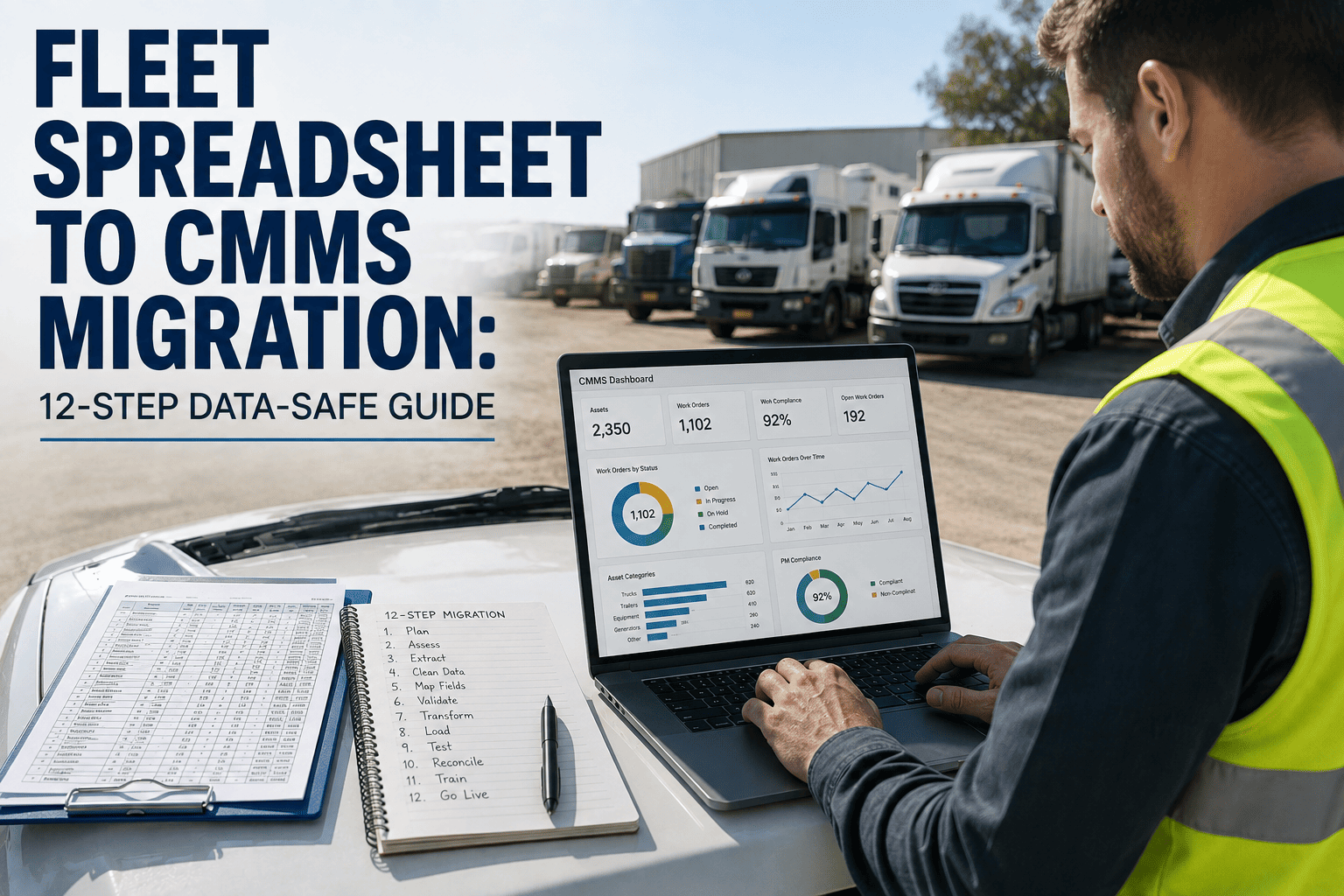
Every fleet manager who has run maintenance out of a spreadsheet eventually hits the same wall: the file gets too big, formulas break quietly, someone overwrites last week's PM log, and nobody can find the warranty date on truck 214 when its transmission fails three months before it should have been covered. Excel was never built to track thousands of odometer readings, service intervals, and parts invoices across a growing fleet, and the clever workaround formulas that once saved time start corrupting data nobody notices until a warranty claim gets denied or a truck breaks down mid-route. Moving that history into a real maintenance system sounds simple until you actually look at the file in front of you — the merged cells, the three people who each kept a private copy, the PM dates typed as plain text instead of real dates. This guide walks through the twelve steps that let a fleet team migrate cleanly, without losing a single PM record, warranty date, or vendor invoice along the way, and it ends with a table you can use to check your own file against. If you want to see how mapped fleet data actually looks inside a live system before committing to anything, you can start a free trial and upload a sample export yourself.
Fleet Data Migration
12 Steps to Move Your Fleet Off Spreadsheets Without Losing a Single Record
Most failed migrations don't fail because the software is wrong — they fail because nobody mapped the spreadsheet's hidden logic before the import ran. Here's the sequence that keeps PM history, warranty dates, and cost records intact from the first export to the final cutover.
12
Sequenced steps from export to cutover
0
PM records lost when every step is followed in order
48hrs
Typical clean migration window for a 50-vehicle fleet
The Real Problem
Why Spreadsheets Quietly Break Down As Fleets Grow
A spreadsheet works fine for eight vehicles tracked by one person. It starts to strain at twenty, and by fifty it's usually held together by habits nobody wrote down: a specific tab order, a color code only one person remembers, a macro that breaks if a row gets inserted above it. None of that is a flaw in the person maintaining it — it's what happens when a general-purpose tool gets stretched to do a specialized job it was never designed for.
The failures that actually cost money are rarely dramatic. A PM interval typed as "6/1" instead of a real date silently drops out of a sort. A dispatcher pastes over last week's mileage column instead of adding a new one. Two regional managers each keep their own copy of the same fleet, and by the time anyone compares them, one truck has two different warranty expiration dates on record. These aren't edge cases — they're what happens to every spreadsheet that outlives its original owner.
A single missed PM interval caused by a formula that silently failed can void a drivetrain warranty worth tens of thousands of dollars. The cost of one overlooked data error in a spreadsheet routinely exceeds the entire cost of migrating away from it.
Migration Mistakes
What Usually Goes Wrong Before the 12 Steps Are Followed
Most botched migrations share the same four root causes, and every one of them is avoidable with a bit of upfront discipline. Fleets that skip straight to importing a spreadsheet into new software, without doing the groundwork first, tend to rediscover these problems only after the old file is already gone.
Importing before mapping columns
A column labeled "Date" might mean install date on one tab and last service date on another. Importing blind carries that ambiguity straight into the new system.
Deleting the old file too early
The original spreadsheet is the only audit trail until the new system has been reconciled against it. Deleting it before a full row count check removes any way to catch a missed record.
Skipping the parallel run
Running the old and new systems side by side for even a week surfaces mismatches — a PM that fires twice, a vehicle missing from one system — while there's still time to fix them.
No single owner for the cutover
When migration decisions get split across several people with no final sign-off, small inconsistencies from each person's assumptions compound into a messy final dataset.
The Process
The 12-Step Migration Sequence
1
Export every worksheet exactly as it is
Before changing a single cell, save a complete export of every tab, including any hidden sheets or archived tabs nobody opens anymore. This becomes your permanent reference copy for the rest of the project.
2
Freeze a read-only master copy
Lock that export so nobody can accidentally edit it during the migration window. This is the file you'll reconcile against later, so it needs to stay untouched from day one to sign-off.
3
Inventory every column and what it actually represents
Go tab by tab and write down what each column really means in practice, not just its header label. This is where hidden assumptions like "Date" meaning three different things get surfaced.
4
Separate asset data from transaction data
Vehicle details, PM history, and cost records usually get tangled together in one sheet. Splitting them into distinct categories before import matches how a proper maintenance system actually stores data.
5
Standardize dates and odometer formats
Convert every text-formatted date to a real date value, and confirm odometer readings are recorded consistently in miles or kilometers across every vehicle and every tab.
6
Map warranty and PM interval fields explicitly
Warranty expiration and PM interval logic are the two data points most likely to matter financially if they're wrong. Map each one to a specific, unambiguous field before import, not a general notes column.
7
Clean duplicate vehicle records
Search for the same VIN or unit number appearing across multiple tabs or files, and decide which version is authoritative before two conflicting histories get imported for the same truck.
8
Validate vendor and cost history against invoices
Spot-check a sample of cost entries against the original vendor invoices. Spreadsheets accumulate typos in dollar figures more often than any other field, and those errors compound in reporting later.
9
Import in the right order: assets, then PM history, then work orders
Importing in this order means every PM record and work order has a valid vehicle to attach to. Reversing the order creates orphaned records that are painful to trace back later.
10
Run a parallel week before full cutover
Keep the spreadsheet in read-only use alongside the new system for a week. Any mismatch between the two — a missing PM, a duplicate work order — shows up while there's still time to correct it.
11
Reconcile record counts against the frozen master copy
Count vehicles, PM records, and work orders in the new system and compare each total against step 2's frozen copy. Any gap needs to be explained before you move on, not assumed away.
12
Retire the spreadsheet only after sign-off
Once counts reconcile and a week of parallel use shows no gaps, archive the original file somewhere safe and make the new system the single source of truth for every vehicle in the fleet.
Readiness Check
Signs Your Fleet Has Outgrown Its Spreadsheet
Not every fleet needs to migrate today, but certain signals are a reliable warning that the spreadsheet is closer to failing than it looks. Recognizing these early makes the eventual migration calmer, because it happens on your schedule rather than after a missed PM or a denied warranty claim forces the issue.
More than one person edits the file regularly
Once two or more people update the same spreadsheet, version conflicts and overwritten rows become a matter of when, not if, especially without a shared editing history.
PM intervals are tracked by memory as much as by the sheet
If a technician or manager routinely double-checks a PM date against memory because the sheet "sometimes gets it wrong," the sheet has already stopped being a reliable source of truth.
Reporting takes hours instead of minutes
Manually pulling a fleet-wide cost or downtime report by copying numbers between tabs is a strong sign the data has outgrown what a spreadsheet can summarize on its own.
Warranty claims have been denied due to missing records
If even one warranty claim has been rejected because the PM history couldn't be produced quickly and clearly, that single incident usually costs more than a full migration would have.
Before You Start
What a Clean Migration Template Should Capture
Whatever spreadsheet or CMMS you end up using, a solid migration template organizes data into three clear layers before anything gets imported. Building this structure up front, even inside your existing spreadsheet, makes step three of the twelve-step process considerably faster.
The first layer is asset data: one row per vehicle, with a unique identifier, make, model, year, and any custom fields specific to your fleet. The second layer is history: every PM event, work order, and inspection tied back to that identifier, with real date values rather than text. The third layer is cost: parts, labor, and vendor invoices linked to the specific history record they belong to, not lumped into a single running total. Keeping these three layers distinct, even before you touch new software, is what makes the eventual import fast, accurate, and easy to reconcile against the original file.
Bring Your Own Export
See Your Fleet Data Mapped Into a Real System, Not a Bigger Spreadsheet
Oxmaint's onboarding team has walked dozens of fleets through exactly this sequence, from a messy first export to a clean, reconciled dataset with full PM history and warranty tracking intact.
Quick Reference
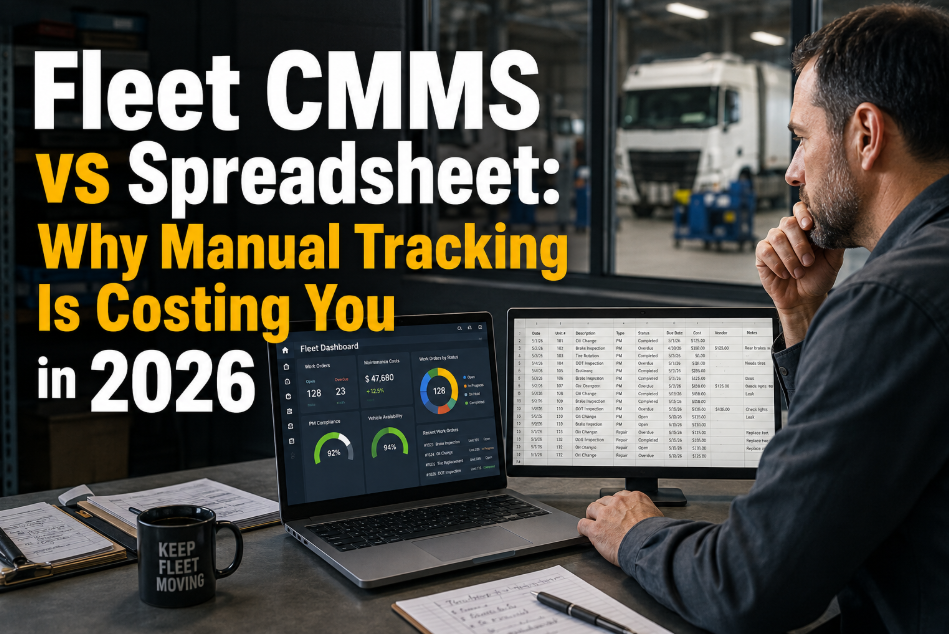
Spreadsheet vs. CMMS: What Actually Changes After Migration
| Capability |
Spreadsheet |
CMMS After Migration |
| PM scheduling |
Manual date tracking, easy to miss |
Automatic interval and mileage triggers |
| Warranty tracking |
Buried in notes columns or separate files |
Dedicated field with expiration alerts |
| Audit trail |
Overwritten silently, no history |
Every change logged with timestamp and user |
| Technician access |
Desktop file, rarely current in the field |
Mobile access with real-time updates |
| Cost rollups |
Manual formulas, breaks with new rows |
Automatic reporting across the fleet |
| Duplicate records |
Common across multiple copies |
Single source of truth per vehicle |
Common Questions
Fleet Spreadsheet Migration — Frequently Asked Questions
How long does a spreadsheet-to-CMMS migration actually take?
A fleet of around fifty vehicles with a reasonably organized spreadsheet can usually complete all twelve steps within a week, including a short parallel run. Larger or messier files take longer mainly at the mapping stage.
Book a demo to get a realistic estimate for your specific file.
What happens to PM dates that were typed as text instead of real dates?
Text-formatted dates need to be converted before import, or they won't sort or trigger reminders correctly in the new system. Step five in this guide exists specifically to catch and fix this before it becomes a missed PM later.
Can two people's conflicting spreadsheet copies be merged automatically?
Not automatically, and that's by design — a system that silently merges conflicting warranty dates or PM logs could make the wrong choice. Step seven has someone manually decide which record is authoritative for each vehicle before import.
Do technicians need training before the cutover date?
A short walkthrough on logging work orders from a phone or tablet is usually enough, since most CMMS platforms are simpler for day-to-day use than a spreadsheet ever was.
Start a free trial to preview the technician view before rolling it out.
Does this process preserve warranty claim eligibility records?
Yes, as long as step six is followed and warranty fields are explicitly mapped rather than left in general notes. Reconciling record counts in step eleven also confirms no warranty-relevant vehicle was dropped during import, which is usually the single biggest financial risk in the entire process.
Ready When You Are
Give Your Fleet's Maintenance History a Home That Won't Break
No more merged cells, no more guessing which copy is current, no more warranty dates buried in a notes column. Just one clean, reconciled record for every vehicle you run.